Zoom Integration
If your municipality records meetings to the Zoom cloud, you can connect MuniMins to your Zoom account and import those recordings directly — no downloading and re-uploading files. MuniMins pulls the recording's audio, transcribes it, and generates formal minutes through the standard pipeline.
Requirements: only an Organization Owner can connect or disconnect the Zoom connection.
Adding the app
Connect your Zoom account once; the connection then applies to your whole organization.
- Sign in to MuniMins as an Organization Owner.
- Go to Settings → Integrations.
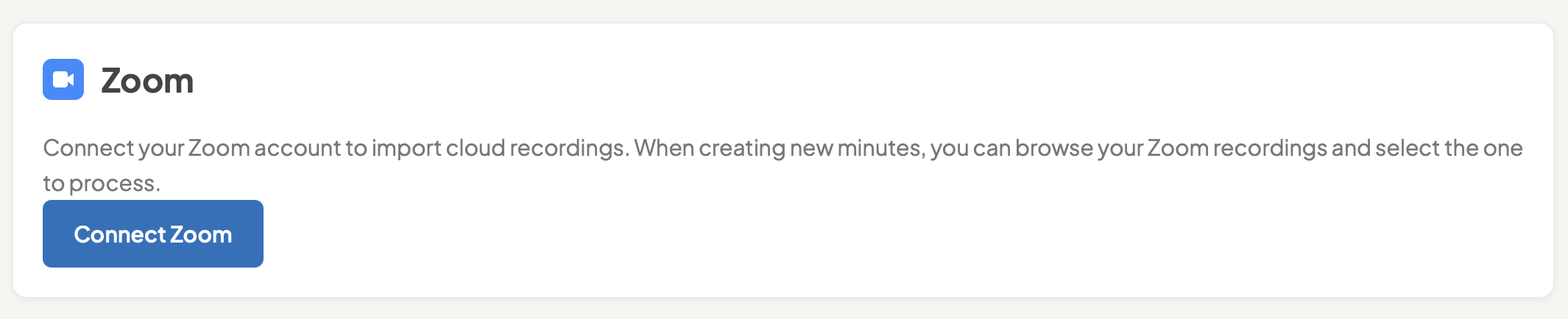
- In the Zoom section, click Connect Zoom.
- You'll be sent to Zoom to sign in (if you aren't already) and review the permissions MuniMins requests — read-only access to your user profile and your cloud recordings. Click Allow.
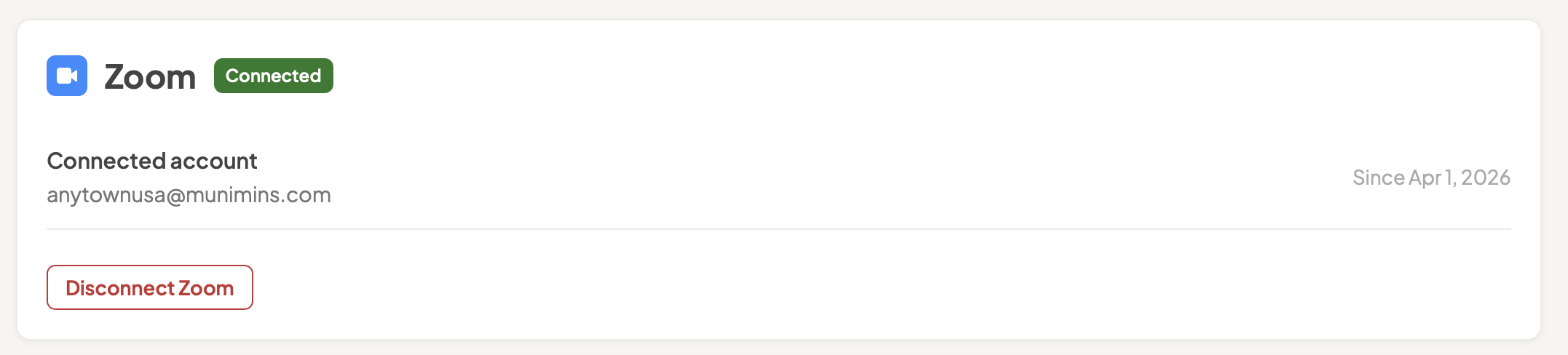
- Zoom returns you to MuniMins. The Zoom section now shows Connected with the email of the authorized Zoom account.
If the connection doesn't complete or you're asked to sign in again, see Troubleshooting below.
Using the app
Import a Zoom cloud recording into minutes
Use case: turn a Zoom-recorded board or committee meeting into formal minutes without exporting the file from Zoom.
Prerequisites:
- Your organization is on the Complete plan and Zoom is connected (see above).
- The meeting was recorded to the Zoom cloud (not recorded locally to a computer).
- The recording includes an audio-only (M4A) file. In Zoom, this is controlled by Settings → Recording → Cloud recording → "Record an audio only file." Recordings without an audio file won't appear.
- The recording is from within the last 90 days.
Steps:
- Go to New Minutes.
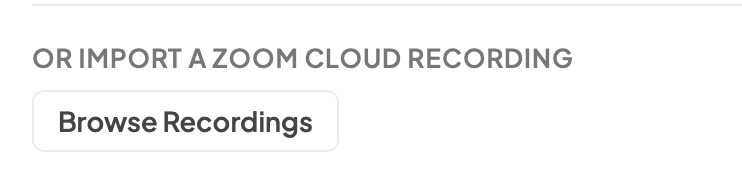
- Under "Or import a Zoom cloud recording," click Browse Recordings.
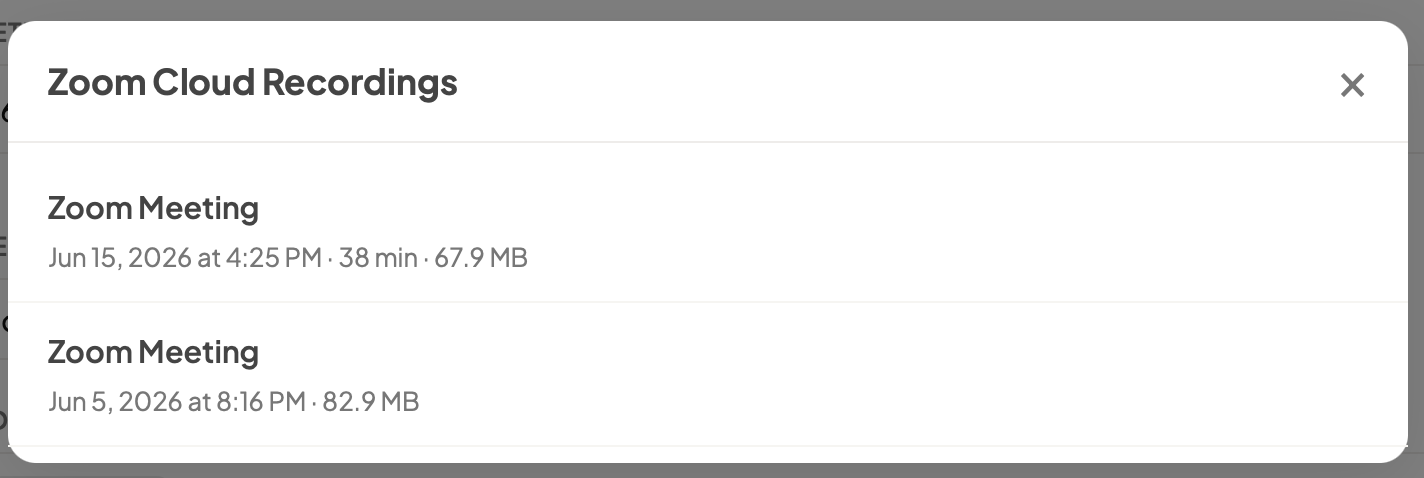
- Pick the recording you want from the list (shown newest first).
- Choose the board and detail level as you would for any meeting, then submit.
- MuniMins downloads the recording's audio, transcribes and diarizes it, and generates minutes. Track progress on the Processing Queue; the finished minutes appear in All Minutes.
Removing the app
To fully remove MuniMins' access to your Zoom account, do both of the following:
- Disconnect in MuniMins: go to Settings → Integrations, and in the Zoom section click Disconnect Zoom. This immediately deletes the Zoom access and refresh tokens MuniMins stored for your organization.
- Revoke in Zoom: sign in at marketplace.zoom.us, go to Manage → Added Apps, find MuniMins, and click Remove. This revokes the authorization on Zoom's side.
What happens when you de-authorize
- MuniMins can no longer access your Zoom cloud recordings, and you won't be able to import new Zoom recordings until you reconnect.
- Minutes you already generated from Zoom recordings remain in your MuniMins account — removing the integration does not delete them.
How your data is removed
- Disconnecting deletes your stored Zoom OAuth tokens from MuniMins right away. We never store your Zoom password.
- Audio imported from Zoom and the minutes generated from it are kept as part of your meeting records. You can delete any meeting's minutes individually from All Minutes.
- To have all of your data permanently deleted, email support@munimins.com or close your organization's account.
Troubleshooting
- A recording isn't in the Browse Recordings list. Confirm it's a cloud recording (not local), that it has an audio-only (M4A) file enabled in your Zoom recording settings, and that it's from the last 90 days. Meeting recordings must be processed on the Zoom cloud first, which can take some time especially if the meeting is long. We recommend waiting at least 15 minutes after ending the meeting before trying to import to MuniMins.
- "Connect Zoom" doesn't finish, or you land back on the login page. Make sure you're signed in to MuniMins first, then start the connection again from Settings → Integrations. Connecting ZOOM and MuniMIns requires cookies so some cookie-blockers may interrupt this. Disable any third-party plugins or blockers before trying connect your accounts.
- Still stuck? Email support@munimins.com with the meeting topic and date and we'll help.
Privacy
MuniMins requests read-only access to your Zoom user profile (to identify the connected account) and your cloud recordings (to import the ones you choose). We do not access your Zoom chats, contacts, camera settings, or any other Zoom features, and we never store your Zoom password.